FABRIZIO DI BENEDETTO · FDB AURUM
User guide · AURUM PULSE · AURUM SHIFT · AURUM RADAR · XAUUSD · MetaTrader 5
Few words. All of them gold. Fixed stop. Fixed target. No second thoughts.
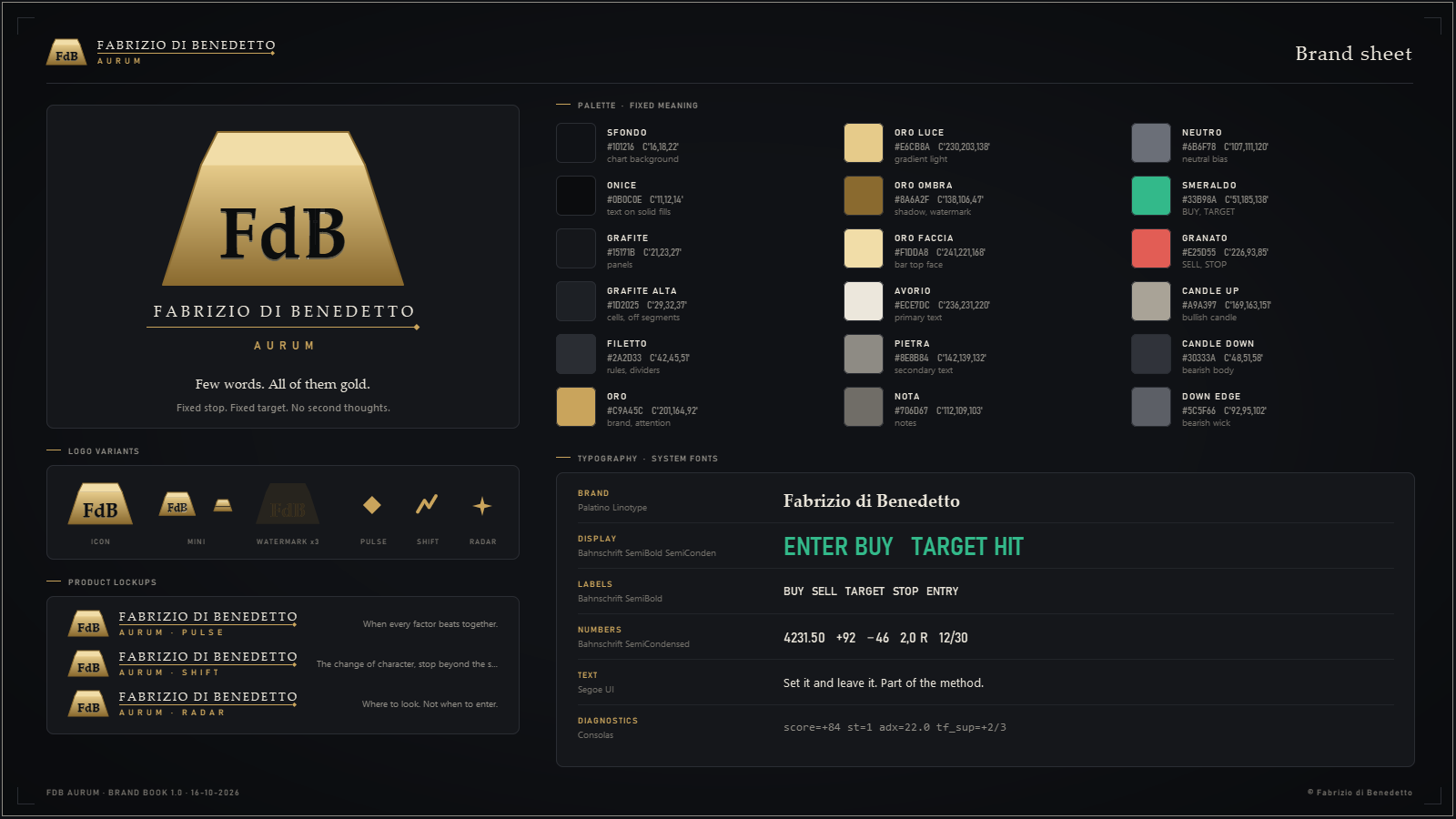
At a glance
| Product | The question it answers | What it tells you | Recommended timeframe |
|---|---|---|---|
| AURUM RADAR | Which way do I look? | BULLISH BIAS / BEARISH BIAS / NEUTRAL, on 6 timeframes from M5 to W1 | the same as the product you enter with |
| AURUM PULSE | Do I enter now? | ENTER BUY / ENTER SELL when all the factors beat together, with STOP and TARGET already calculated | H4 (H1 as an alternative) |
| AURUM SHIFT | Has the market changed character? | ENTER on the change of character (CHoCH), with the STOP beyond the protected swing (at most 3 ATR) | H1 |
- PULSE is the market's heartbeat: the moment when SuperTrend, moving averages, structure, momentum, squeeze, strength (ADX) and the higher timeframe agree.
- SHIFT is the change of character (market structure shift): the market breaks its structure and turns.
- RADAR tells you which direction to look in. It does not tell you when to enter.
Installation with your two templates: section 1. The licence: section 2. The numbers: section 9. Phone alerts: section 10 (one input, Notifiche sul telefono / Phone notifications).
Free, personal licence, for one MetaTrader 5 account. It is already inside your two templates. On any other account number each product shows a single message and does not start: it removes itself from the chart without drawing anything (section 2).
The indicators can show their text in Italian or in English (input Lingua / Language). Some screenshots in this guide show the Italian interface: the English words are given next to them.
1. Installation: your two templates
After confirming your email you download a personal zip, FDB_AURUM_<your account>.zip. Inside you find:
| In the zip | What it is |
|---|---|
MQL5\Indicators\FDB\FDB_Aurum_Pulse.ex5 | AURUM PULSE |
MQL5\Indicators\FDB\FDB_Aurum_Shift.ex5 | AURUM SHIFT |
MQL5\Indicators\FDB\FDB_Aurum_Radar.ex5 | AURUM RADAR |
MQL5\Profiles\Templates\FDB_Aurum_Pulse.tpl | your template for XAUUSD H4: PULSE and RADAR, with the licence already inside |
MQL5\Profiles\Templates\FDB_Aurum_Shift.tpl | your template for XAUUSD H1: SHIFT and RADAR, with the licence already inside |
INSTALLAZIONE.md | these same steps, in your language |
licenza.txt | your licence in plain text, to paste by hand if needed |
They are indicators: they do not open or close orders, use no DLLs and do not connect to the internet.
Installation in 4 steps
- Extract the zip on the computer where you use MetaTrader 5. In MetaTrader choose File → Open Data Folder.
- In the zip, open
MQL5\Indicators: copy theFDBfolder, with the three indicators, intoMQL5\Indicatorsin the data folder. - In the zip, open
MQL5\Profiles\Templates: copyFDB_Aurum_Pulse.tplandFDB_Aurum_Shift.tplintoMQL5\Profiles\Templatesin the data folder. - In the Navigator, right-click Indicators → Refresh, or restart MetaTrader. Open an XAUUSD H4 chart, then right-click → Templates → FDB_Aurum_Pulse. For SHIFT, open an XAUUSD H1 chart and apply FDB_Aurum_Shift.
Your two templates
- FDB_Aurum_Pulse: PULSE and RADAR, for XAUUSD H4 (H1 as an alternative).
- FDB_Aurum_Shift: SHIFT and RADAR, for XAUUSD H1.
- RADAR is in both templates, on the same chart as the product you enter with: you find it in the panel at the bottom left (section 8).
The template does not change the chart's timeframe: choose H4 or H1 first, then apply the template. The gold symbol name changes from broker to broker (XAUUSD, XAUUSD.r, GOLD...): that is fine, as long as it is gold against the US dollar.
Your licence is already inside the two templates. The indicators start only when MetaTrader is connected to the licensed account (section 2).
Language and mode
To change a setting: right-click the chart → Indicators List → double-click the product → Inputs tab. The two you will use most:
- Lingua / Language:
ItalianoorEnglish; - Modalità / Mode:
SEMPLICE(simple, the default) orESPERTO(expert). The signal is the same: ESPERTO also shows what lies behind it (sections 5, 6 and 7).
The inputs marked [Esperto] are parameters of the logic: leave them as they are. The statistics in section 9 apply only to the default values.
If something is wrong
- I cannot see the indicators in the Navigator: check that you copied them into the data folder of the same MetaTrader installation you are using (File → Open Data Folder) and click Refresh.
- I cannot find the templates in the Templates menu: check that the two
.tplfiles are inMQL5\Profiles\Templatesin the data folder, then restart MetaTrader. - The status bar says "Loading data: please wait.": MetaTrader is downloading the history. Wait a few seconds or scroll the chart back once.
- A message "FDB AURUM: ..." appears and the indicator disappears: it is the licence, see section 2.
- The chart colours have changed: that is the brand theme. Removing the indicator restores your previous colours; to keep your own colours set Applica il tema FDB al grafico (apply the FDB theme to the chart) to
false.
2. The licence
The licence is free, personal and for life, for one MetaTrader 5 account number: the one you typed in the form. It is a line of text that starts with FDB1-, digitally signed. The indicators check it on their own, on your computer, without internet: they send no data and need no server to start.
Where it goes
- It is already in your two templates. Each indicator in the templates holds the licence in the Licenza / License key input: you apply the template and that is all.
- If you attach an indicator by hand (dragging it from the Navigator): in the Inputs tab, in the Licenza / License key field, paste the line that starts with
FDB1-. You find it inlicenza.txt, in the email with the link and on the licence-ready page. Copy it whole, without spaces.
The common file
The first time an indicator starts with a valid licence, it also saves it in a file on the computer:
Common\Files\FDB_AURUM\licenza_<account number>.txt
The Common folder is shared by all the MetaTrader installations on the computer (on Windows it is usually C:\Users\<your name>\AppData\Roaming\MetaQuotes\Terminal\Common). From then on, on the same computer and with the same account, you can attach an indicator by hand even with the licence field left empty: it finds the licence in the file.
You do not need to open or edit the file. It holds only your licence and it is checked every time: a file written by hand or copied from another account does not work. On a new computer or on a VPS the file is not there yet: apply the templates (or paste the licence once) and it is created automatically.
What the messages say
If the licence is missing or wrong, the indicator shows a single message in the Alert window, draws nothing and removes itself from the chart. The same message is repeated at most once a minute. The Alert window does not wrap text: the important part comes first, the rest can be read by widening the window or in the Experts tab of the Toolbox window. The language is the one set in the Lingua / Language input.
| The message starts with | What it means | What you do |
|---|---|---|
| FDB AURUM: no licence key for account ... | the licence field is empty and the common file is not on the computer yet | apply one of your templates, or paste the licence into the Licenza / License key input |
| FDB AURUM: this licence key is for account X, not for account Y | MetaTrader is connected to a different account from the licensed one | connect to the licensed account (X). The licence cannot be moved to another account |
| FDB AURUM: licence key not valid for account ... | the line is incomplete, has a changed character or is not an FDB AURUM licence | copy it again, whole and without spaces, from licenza.txt or from the email |
| FDB AURUM: the licence key for account ... does not include ... | the licence does not cover that product | today's licences include all three products: use the line you received, not an old one |
| FDB AURUM: the licence key for account ... has expired | the licence had an expiry date | today's licences do not expire: use the line you received |
No message, but the indicator draws nothing? MetaTrader is not connected to the account yet (for example right after start-up). The indicator waits and checks again every second: it starts on its own as soon as the account is connected.
If you switch account while the indicator is on the chart, the indicator deletes its drawings, restores the chart colours and removes itself. If you then go back to the licensed account, apply the template again.
Lost the zip or the licence? From the Recover your download page of the website you receive a new link by email: the licence stays the same. On the My data page you can see your licence and the data you gave us.
On a VPS
It works on a Windows VPS with MetaTrader 5 connected to the same account: copy the zip there too and follow the same 4 steps of section 1. The indicators use no DLLs and do not go online, so you do not need to open anything in the VPS firewall. You can run them on your computer and on the VPS at the same time: what counts is the account number, not the computer.
A VPS is useful above all for phone notifications: they are sent by MetaTrader while it is running, not by the app (section 10). MetaTrader's built-in VPS (MQL5 Virtual Hosting) has not been tested with these indicators.
3. The method: fixed STOP, fixed TARGET
Every PULSE and SHIFT trade follows the same rules, and the chart shows only these:
- The signal is born on the closed bar. BUY or SELL appears on the confirmation bar when it closes and does not move again (no repainting). The bar still forming produces no signals.
- You enter at the open of the bar after the signal. One trade at a time: signals that arrive while a trade is open are not drawn and not taken.
- The STOP is fixed and calculated by the indicator:
- PULSE: beyond the nearer of the SuperTrend line and the last swing, plus 0.2 ATR, at least 1 ATR from the price;
- SHIFT: beyond the protected swing, plus 0.2 ATR, at least 1 ATR from the price and at most 3 ATR: if the protected swing is further away, SHIFT skips the signal (no entry) instead of giving you a huge STOP.
- The TARGET is fixed: the larger of 80 pips and 2 times the STOP. Never below 80 pips.
- The trade ends only at TARGET or at STOP. You set both levels on the order as soon as you enter and never touch them again. You do not move the stop to break-even, you do not trail the price with the stop, you do not close early.
1 pip = $0.10 of the gold price (80 pips = $8.00 of movement). With a 100-ounce contract, 0.01 lots are worth $0.10 per pip.
Set it and leave it. A STOP is part of the method.
4. How to read the screen
All three products speak the same language. Learn to read one and you can read them all.
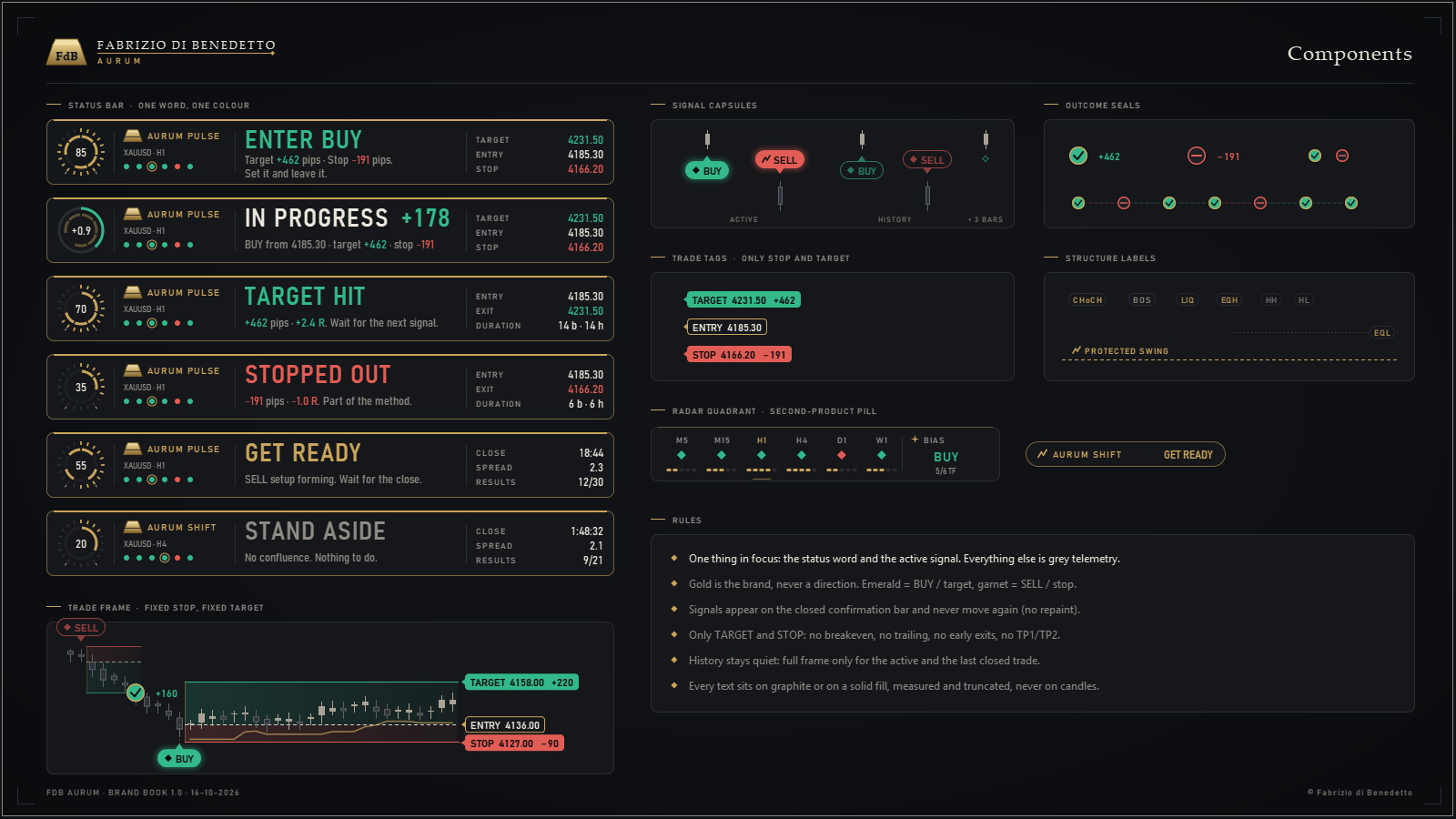
Illustration: the values are examples, not real trades.
The status bar (the band at the top centre)
It is the only thing you need to look at to know what to do. It reads from left to right:
| Part | What it shows |
|---|---|
| Ring | the score (each lit notch is worth 5 points out of 100). During an open trade it becomes the progress: a green arc towards the TARGET, red towards the STOP, with the result in R in the centre |
| Identity | product name, symbol and timeframe, and the mini-radar: 6 dots for M5, M15, H1, H4, D1, W1 (green = BUY, red = SELL, grey = neutral; the gold circle is your timeframe) |
| The word | the state, large and coloured. Below it, a line that tells you what to do |
| The numbers | at rest: time to the bar close, spread, recommended timeframe or results. During a trade: STOP, ENTRY and TARGET in the same order as on the chart |
A click on the status bar opens the drawer: the detail (components, live statistics, rules of the model).
The log (the band under the status bar, PULSE and SHIFT)
The chain of the last 30 trades: filled green dot = TARGET, red ring = STOP, gold ring = in progress. On the right the summary, for example "12/30 target · +6.0 R · all-time +21.0 R": TARGETs in the last 30, result of the last 30 in R, result in R of the whole history loaded on the chart.
On the chart
| Mark | Meaning |
|---|---|
| Filled green BUY / red SELL capsule, with a glow | the active signal |
| Outlined capsule | a past signal |
| Frame with a green zone and a red zone | the trade: green up to the TARGET, red up to the STOP (on a SELL too) |
| Tags on the right: TARGET, ENTRY, STOP | the levels to set on the order, with the price and the pips |
| Green seal with a tick | trade closed at TARGET, with the pips gained |
| Red seal with a bar | trade closed at STOP, with the pips lost |
| Small empty grey diamond, sometimes with SKIPPED: STOP TOO WIDE (SHIFT, ESPERTO mode only) | a change of character that SHIFT did not take: the STOP would have been beyond 3 ATR |
| Technical line at the bottom left | product, symbol, timeframe, "bar close · no repaint", 1 pip = $0.10. In gold it means you asked for phone notifications but they are not active in MetaTrader (section 10) |
Colours always mean the same thing. Emerald green = BUY, TARGET, positive result. Garnet red = SELL, STOP, negative result. Gold is the brand and attention (GET READY), never a direction.
The seven states
| Word (IT / EN) | What you do |
|---|---|
| RESTA FERMO / STAND ASIDE | nothing. There is no setup |
| PREPARATI / GET READY (gold) | a setup is forming. Wait for the bar to close: do not enter yet |
| ENTRA BUY / ENTER BUY, ENTRA SELL / ENTER SELL | enter at the open of the bar. Set the STOP and TARGET from the tags straight away |
| IN CORSO / IN PROGRESS +N | the trade is open. Touch nothing. The number is the current result in pips |
| TARGET RAGGIUNTO / TARGET HIT | trade closed at TARGET. Wait for the next signal |
| STOP RAGGIUNTO / STOPPED OUT | trade closed at STOP. It is part of the method. Wait for the next signal |
| RESTA FERMO / STAND ASIDE · Loading data | MetaTrader is downloading the history: wait |
5. AURUM PULSE · the confluence signal
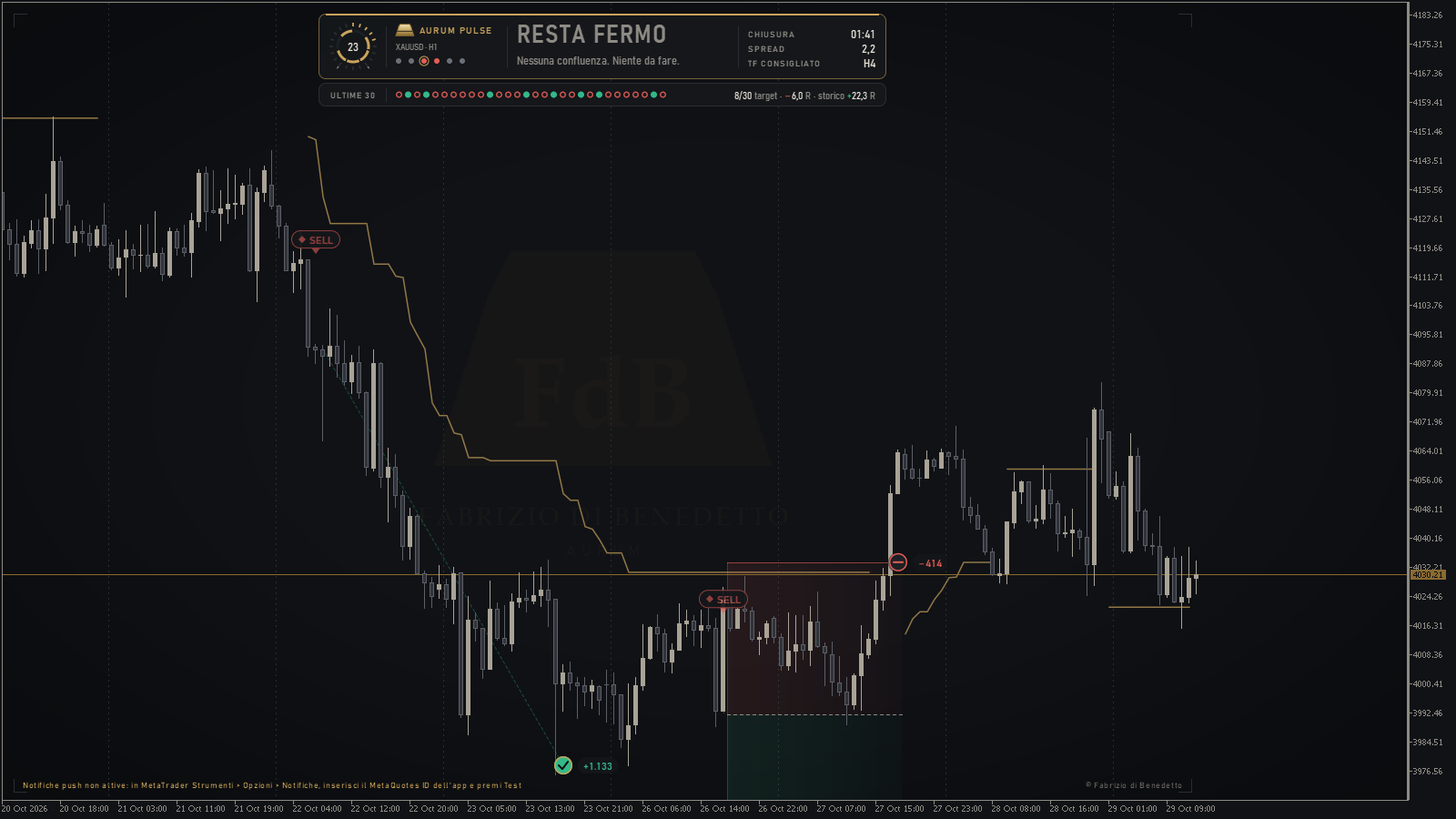
PULSE sums up seven factors in a score from 0 to 100: SuperTrend, 9/21/50/200 moving averages, structure (BOS/CHoCH), momentum (RSI/MACD), squeeze, higher timeframe and strength (ADX). Below 40 it says STAND ASIDE; from 60, with a trigger on the closed bar, it says ENTER. The gold line on the chart is the SuperTrend, the reference for the STOP: it is solid when the trend has strength (ADX at least 18) and disappears when it does not.
Example: a SELL on H4
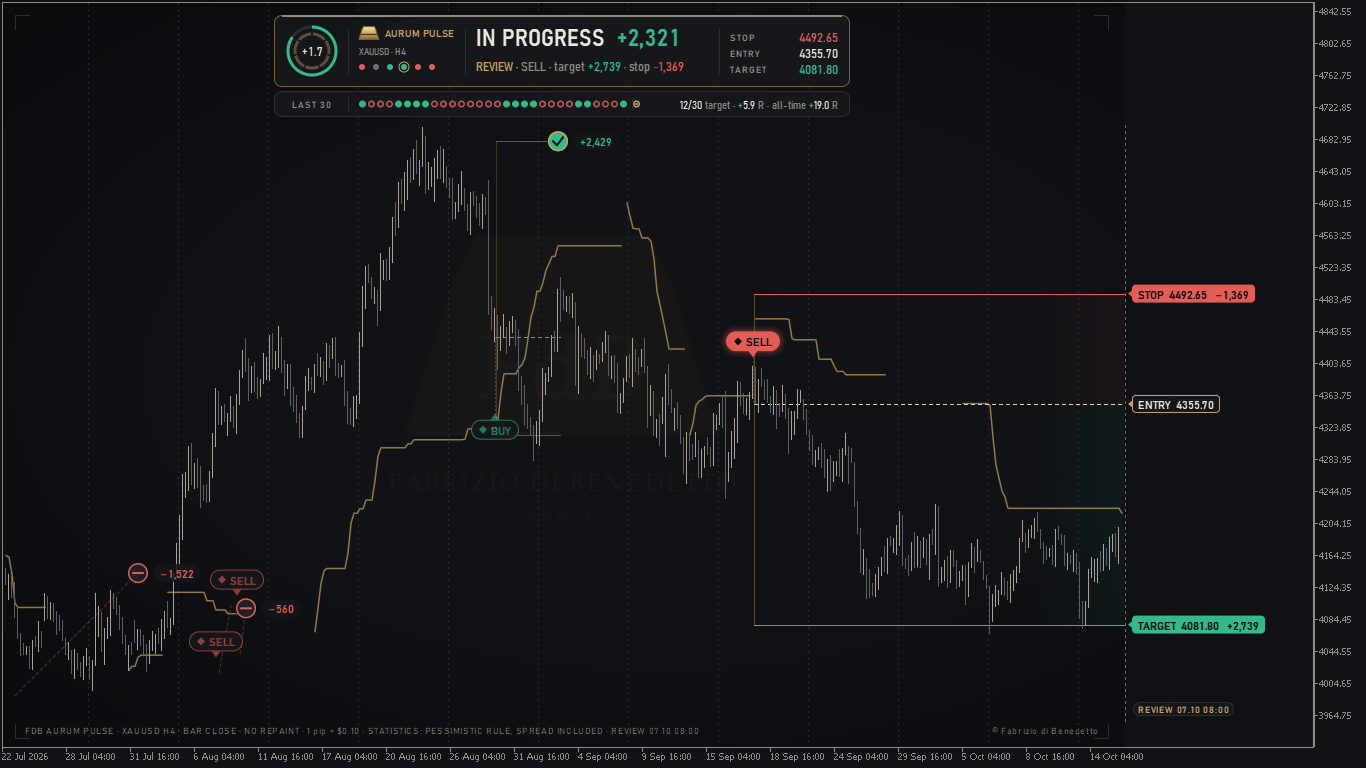
Screenshot in Review mode: the status bar shows a past trade as it was while it was open (the word REVIEW with the date on the right, at the bottom).
- The SELL appears on the closed bar (red capsule). The entry is at 4355.70.
- The tags tell you straight away what to set: STOP 4492.65 (−1,369 pips) and TARGET 4081.80 (+2,739 pips), that is 2 times the STOP.
- The status bar says IN PROGRESS with the result in pips, and the green ring shows how far the TARGET still is.
- On the left, the history: red (STOP) and green (TARGET) seals of the earlier trades, each with its pips.

The same chart today: the trade closed at TARGET (green seal at the bottom right) and the status bar says RESTA FERMO / STAND ASIDE: no confluence, nothing to do. The log shows 12 TARGETs in the last 30 trades.
ESPERTO mode, with the drawer open (H1)
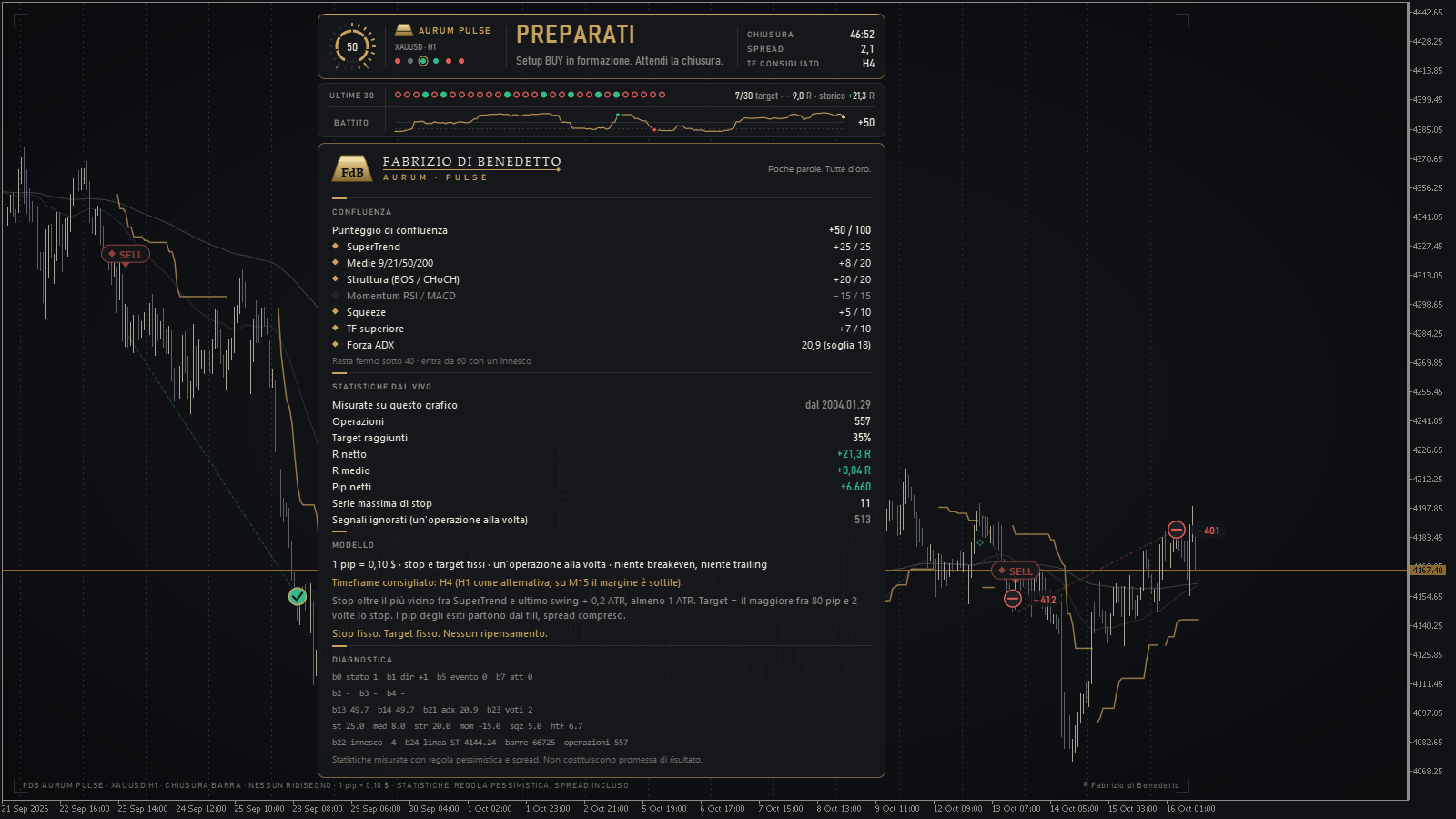
Here the status bar says PREPARATI / GET READY (BUY setup forming: wait for the close). The drawer shows the score (+50 out of 100) factor by factor, with gold diamonds lit on the factors in favour. Under the log there is the BATTITO (pulse) trace: the score of the last 160 bars.
6. AURUM SHIFT · structure and the change of character
SHIFT follows market structure: higher or lower highs and lows, breaks (BOS) and changes of character (CHoCH). When the price closes beyond the level that changes the structure, SHIFT says ENTER in the new direction and places the STOP beyond the protected swing: the point that, if broken, proves the change wrong.
On the chart you also see the dashed gold PROTECTED SWING line and the liquidity levels (LIQ, EQH, EQL: highs and lows not yet taken, where price often goes looking for orders).
Example: a BUY on H1 (the recommended timeframe)

- After the bullish CHoCH, SHIFT gives BUY at 4175.57.
- STOP 4140.87 (−347 pips), beyond the protected swing (the dashed gold line just above the STOP). TARGET 4244.98 (+694 pips), 2 times the STOP.
- The status bar says IN CORSO / IN PROGRESS with the result in pips at that moment: the trade is open. Nothing is touched until TARGET or STOP.
- On the left, the earlier trades: a BUY closed at TARGET (+707) and a STOP (−579).
The maximum STOP: when SHIFT skips a signal
After a long move the protected swing can be very far away (on H4 and D1 even thousands of pips). That is why SHIFT does not take a signal if its STOP would be beyond 3 ATR (input STOP massimo in ATR, maximum STOP in ATR, 3.0; 0 = no limit). The skipped signal is not drawn as an entry: no capsule, frame or tags.
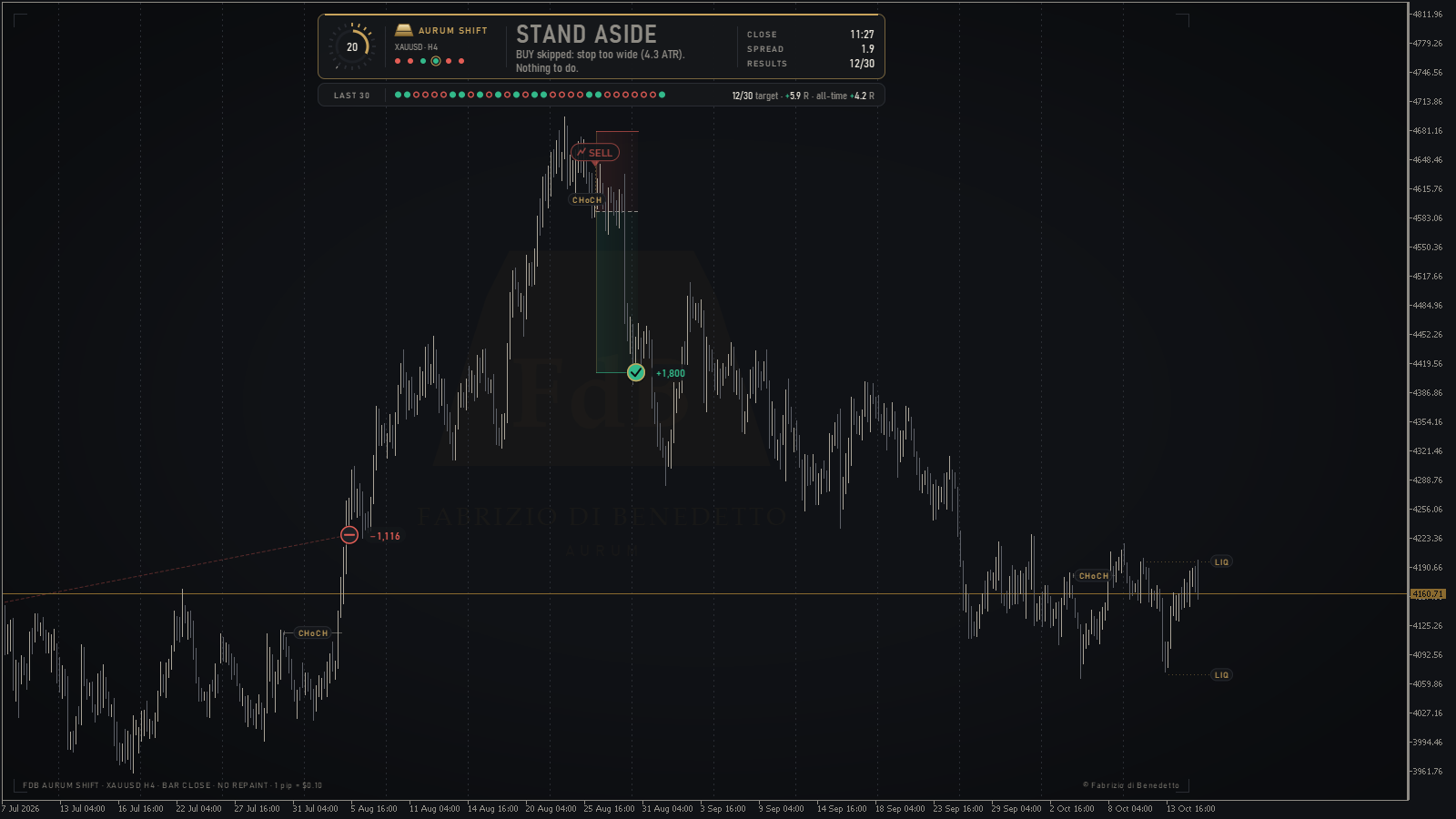
- The status bar says STAND ASIDE and explains why: BUY skipped: stop too wide (4.3 ATR). Nothing to do. The line stays until a new event arrives.
- On the left, a SELL closed at TARGET (+1,800) and a STOP (−1,116).
- In ESPERTO mode every skipped signal has a small empty grey diamond above or below its bar; the most recent one with enough room also carries the words SKIPPED: STOP TOO WIDE.
The STOP stays in ATR of the timeframe. On D1 even 3 ATR are a lot of pips (in the D1 screenshot the STOP is at −2,708 pips): before entering, choose the lot size from the STOP distance, not the other way round. The SHIFT drawer shows risk and target in $ for 0.01 lots.
The SHIFT drawer (H4, ESPERTO)
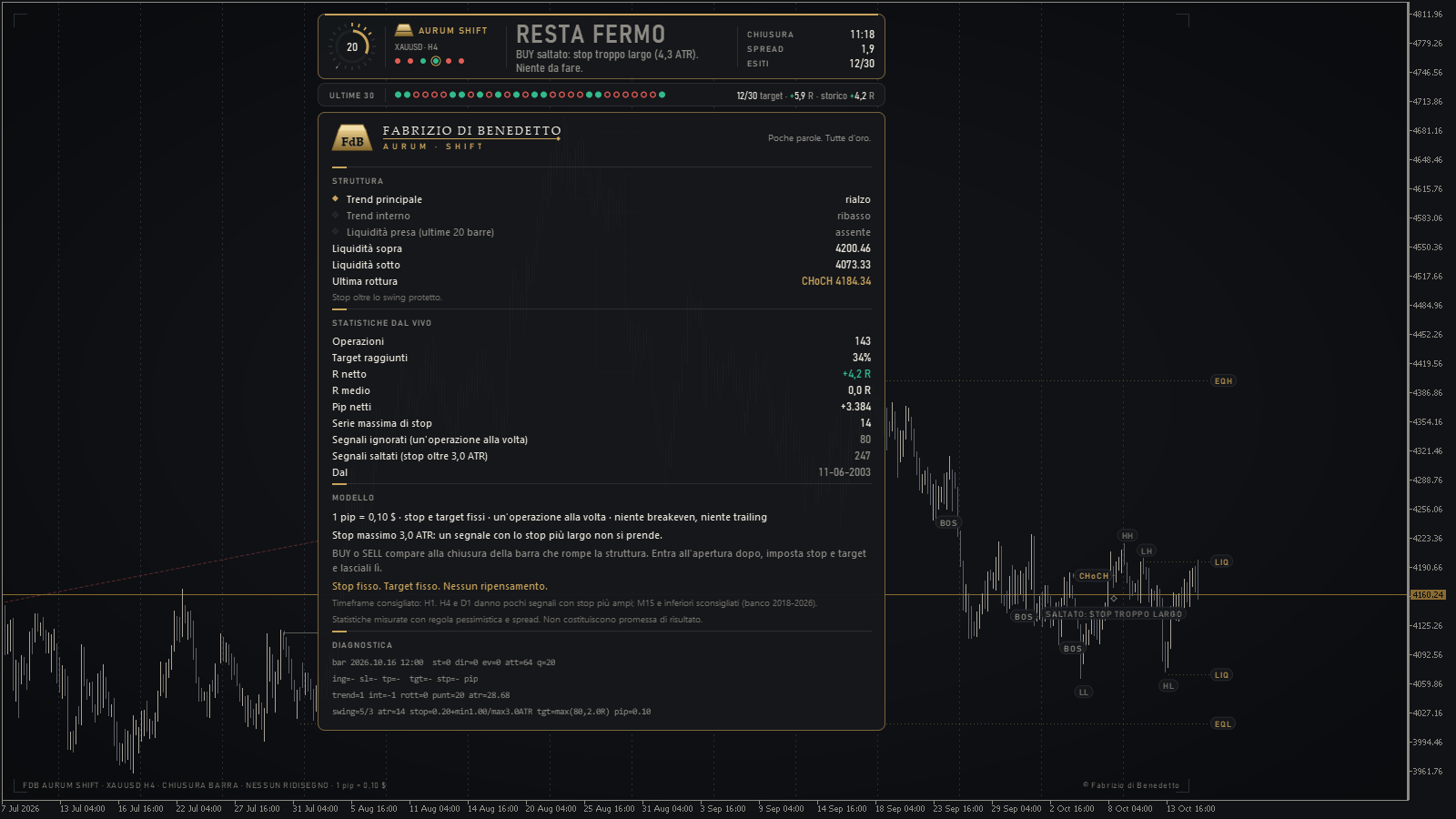
- STRUCTURE: main and internal trend, liquidity above and below, last break. With an open trade it also shows TRADE IN PROGRESS with risk and target in $ for 0.01 lots, and "against the trade" in gold if the main trend points the other way.
- LIVE STATISTICS: the trades of the whole history loaded on the chart, the ignored signals (one trade at a time) and the skipped signals whose STOP was beyond 3 ATR.
- MODEL: the rules, including "Maximum stop 3.0 ATR: a signal with a wider stop is not taken.", and the recommended timeframe.
7. AURUM RADAR · the direction
RADAR looks at gold on 6 timeframes: M5, M15, H1, H4, D1, W1. For each one it counts the votes of SuperTrend, moving averages, ADX, RSI and structure, and derives the bias: BUY, SELL or neutral. Then it sums them up in one word.
| Word | What it means |
|---|---|
| BULLISH BIAS | most timeframes are BUY: look for BUYs only |
| BEARISH BIAS | most are SELL: look for SELLs only |
| NEUTRAL | no dominant direction: stand aside |
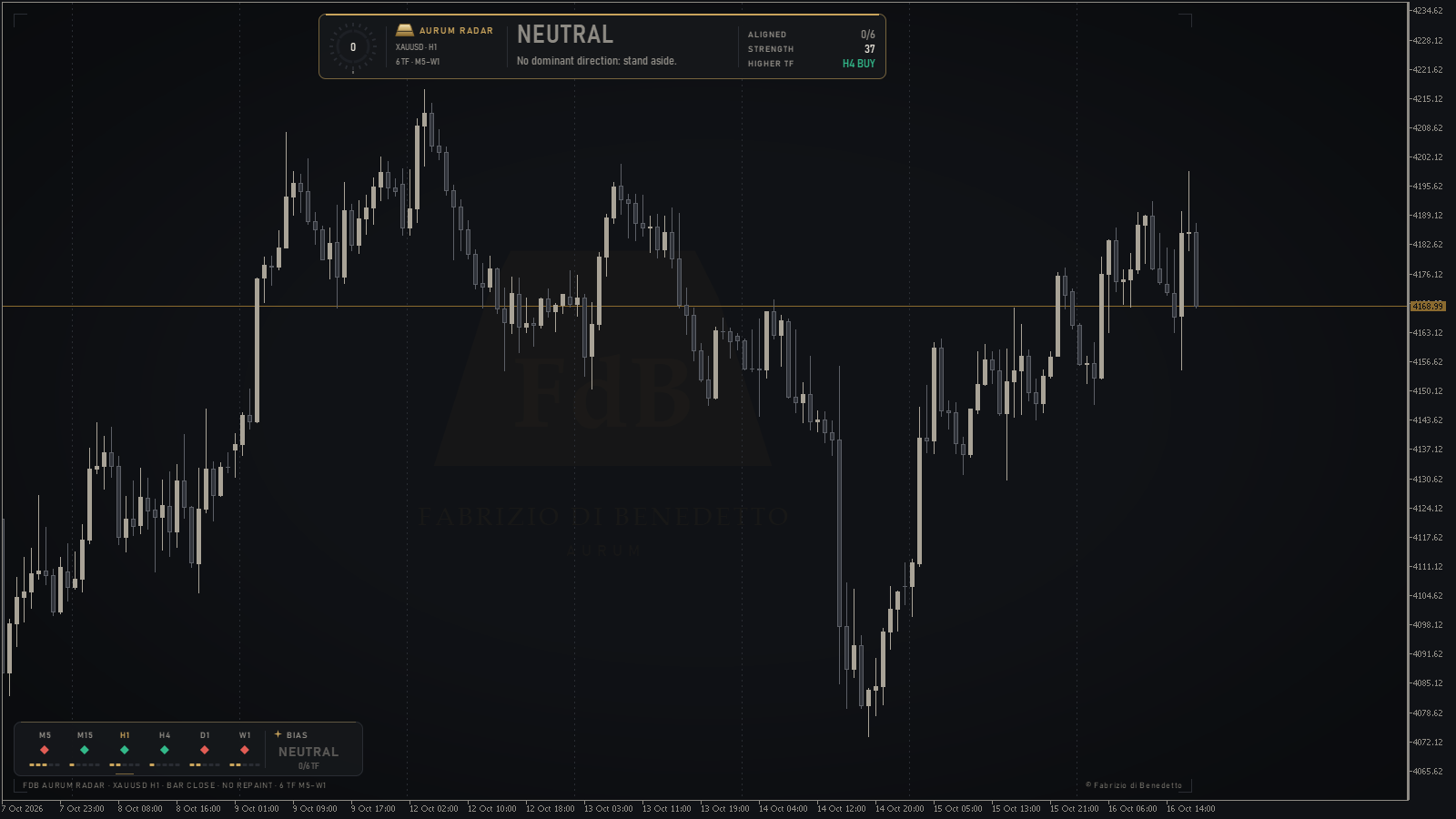
At the bottom left there is the Quadrant: one cell per timeframe with the bias diamond (green, red or empty) and 5 strength notches, plus the overall BIAS cell. In the status bar: ALIGNED (how many timeframes agree, for example 5/6), STRENGTH (0-100) and HIGHER TF (the higher timeframe and its direction).
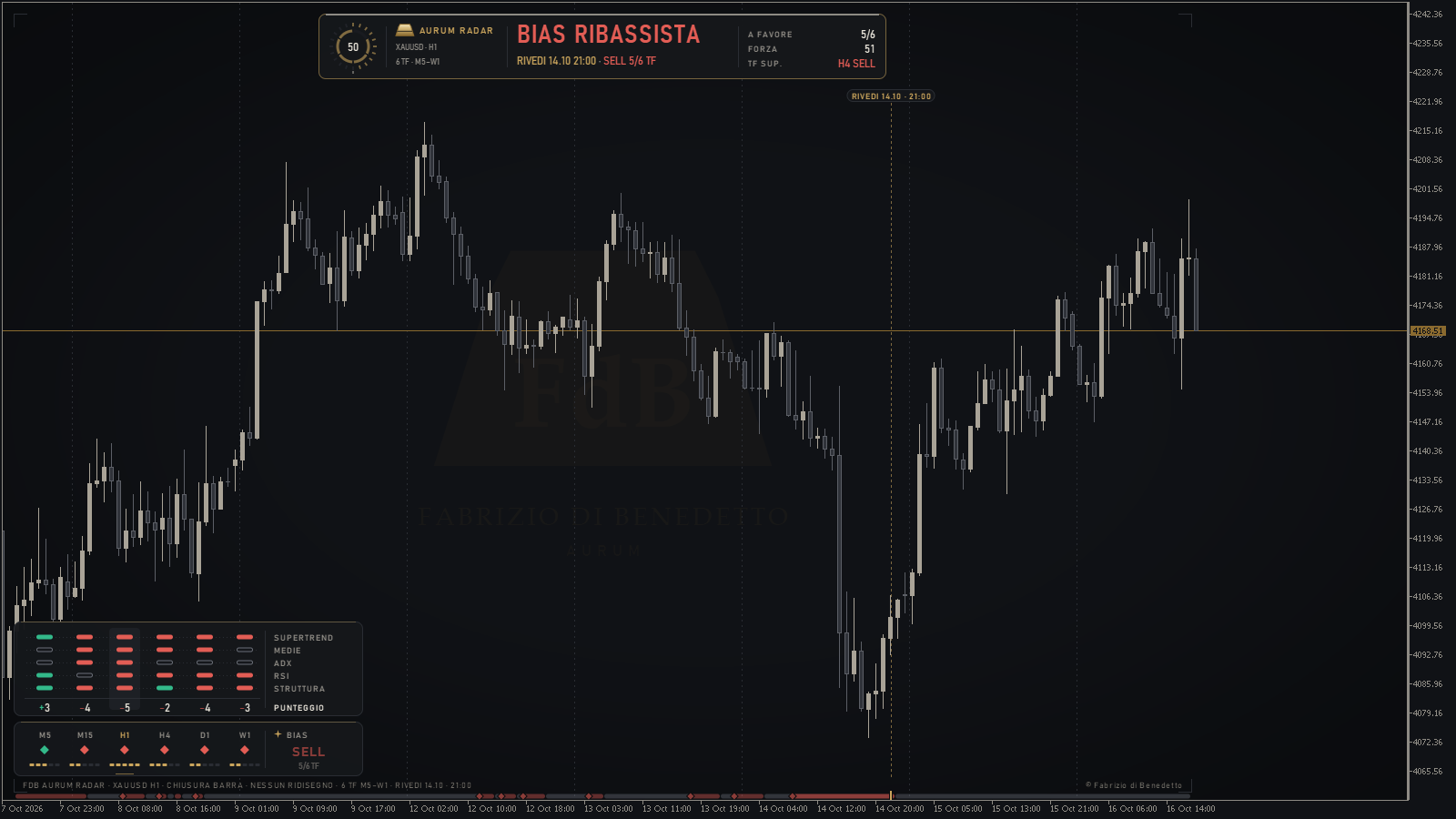
In ESPERTO mode the vote matrix appears above the Quadrant (one row per factor, one column per timeframe, the score at the bottom) and under the chart the bias ribbon, the RADAR history bar by bar. In this screenshot, reviewed at 14 October 21:00, 5 timeframes out of 6 were SELL.
RADAR does not open trades: it has no STOP, TARGET or results. Its statistics in the drawer describe only the bias.
8. How to combine them: three steps
  1  DIRECTION          2  ENTRY                    3  TRADE
  AURUM RADAR    →      AURUM PULSE or SHIFT  →     fixed STOP and TARGET
which way? ENTER BUY / ENTER SELL set it and leave it- The direction, with RADAR. Look at the bias on the timeframe you trade.
- BULLISH BIAS: consider only the ENTER BUY signals.
- BEARISH BIAS: consider only the ENTER SELL signals.
- NEUTRAL: the picture is mixed. Taking the signal or standing aside is your choice: weigh it with care.
- The entry, with PULSE or SHIFT. Enter only when the status bar says ENTER BUY or ENTER SELL in the RADAR's direction. GET READY means "ready, not yet".
- The trade. Open at the start of the bar after the signal, set the STOP and TARGET from the tags on the order, and leave them there until one of the two is hit.
On the same chart. Load PULSE (or SHIFT) first and RADAR second: RADAR gives up the status bar and stays in the Quadrant at the bottom left. Read the BIAS cell. Your two templates are already set up this way: FDB_Aurum_Pulse on H4, FDB_Aurum_Shift on H1.
Two things to know, honestly:
- The statistics (section 9) measure PULSE and SHIFT on their own, with all their signals. The RADAR filter has not been measured: it reduces the number of trades, but we do not know how much it changes the result.
- On H1 the RADAR bias changes often (on average every 6 bars), because it also weighs M5. Read it at the moment ENTER appears, not before.
9. Recommended timeframes, from the numbers
Measurements on XAUUSD from 2018 to 30-9-2026, with the rules of this guide, a pessimistic rule and spread included. R = result in multiples of the risk (one STOP = −1 R, one TARGET about +2 R).
| Product | Timeframe | Trades | At target | Result | Against chance | Worth knowing |
|---|---|---|---|---|---|---|
| AURUM PULSE | H4 (recommended) | 114 (about 1 a month) | 37.7% | +14.4 R | 60th percentile | 7 positive years out of 9; a good part of the result is the rise of gold |
| AURUM PULSE | H1 (alternative) | 433 (4 a month) | 34.9% | +17.5 R | 85th percentile | loses in 2018-21 (−12.2 R), gains only from 2022 |
| AURUM PULSE | M15 | 1584 | 33% | +52.1 R | 100th percentile | 0.03 R per trade: with 2 more pips of spread it goes to −6.9 R |
| AURUM SHIFT | H1 (recommended) | 378 (3-4 a month) | 34.7% | +13.9 R | 65th percentile | positive in 2018-21 (+5.4 R) and in 2022-26 (+8.5 R); median STOP 112 pips; 0.04 R per trade, cannot be told apart from chance |
| AURUM SHIFT | H4 | 102 | 32.4% | −3.5 R | 20th percentile | with the maximum STOP it is no longer recommended |
| AURUM SHIFT | D1 | 8 | 62.5% | +7.2 R | 85th percentile | 8 trades in 9 years: no conclusion possible |
| AURUM SHIFT | M15 | 1563 | 26.2% | −234.7 R | 0th percentile | do not use |
The SHIFT numbers are those of the version with maximum STOP 3 ATR (16-10-2026). The earlier version, without a limit, was better on H4 (+11.7 R, 80th percentile) but with STOPs up to 7,769 pips and trades open for up to 146 days: unusable for anyone trading from 80 pips upwards. With the limit, on H1 the median STOP drops from 189 to 112 pips and a trade lasts at most 27 days (93 before). The 3 ATR limit was chosen by looking at the STOPs, not at the results, and it is the only value tested.
What to expect:
- Little more than 1 trade in 3 reaches TARGET. A TARGET is worth about twice a STOP.
- Runs of 8-14 STOPs in a row are normal (up to 21-23 on M15). Decide the risk per trade with these runs in mind.
- So far the gain has come from the BUYs: the SELLs are at a loss (PULSE H4: BUY +29.3 R, SELL −14.9 R; SHIFT H1: BUY +29.9 R, SELL −16.0 R). It reflects 9 years of rising gold, not a rule.
- Read the R, not the pips. With gold going from about $1,300 to over $4,000, the same trades are worth many more pips today than in 2018.
- The statistics on the chart (log and drawer) start from the beginning of the history loaded in MetaTrader, even from 2003-2004: that is why they differ from the table above. They use the same pessimistic rule and the spread.
10. Phone notifications
The PULSE, SHIFT and RADAR alerts can reach your phone as push notifications from the MetaTrader 5 app. You decide whether to receive them, with a single input.
Step 1 · Connect your phone to MetaTrader (once only)
- Install the MetaTrader 5 app on your phone (App Store or Google Play) and open it.
- Find your MetaQuotes ID: in the app open Settings (on Android from the menu) and then Messages / Chat and Messages. The MetaQuotes ID is a code of letters and numbers (for example
1A2B3C4D). Copy it. - On the computer, in MetaTrader 5: Tools → Options → Notifications.
- Tick Enable Push Notifications and type the MetaQuotes ID in the MetaQuotes ID field.
- Click Test: a test message must reach your phone. If it does, click OK.
Step 2 · Turn on notifications in the indicator
In the indicator's Inputs tab set Notifiche sul telefono / Phone notifications = true and click OK.
| Product | What reaches your phone |
|---|---|
| AURUM PULSE, AURUM SHIFT | ENTER BUY / ENTER SELL, TARGET HIT, STOPPED OUT, GET READY (on top of the alerts you have already switched on) |
| AURUM RADAR | every change of bias (BULLISH BIAS, BEARISH BIAS, NEUTRAL) |
How many notifications to expect (XAUUSD H1, the whole of 2025, in the tester): PULSE about 50 ENTER, 50 results and 220 GET READY; SHIFT about 46 ENTER, 47 results and 107 GET READY; RADAR on H1 changes bias often, about 3-4 times a day (866 changes in 2025): if fewer notifications are enough for you, put it on H4 or turn on the phone only for PULSE or SHIFT.
Nothing changes on the computer: the alert window shows what it showed before. Want to choose alert by alert? Leave Phone notifications = false and use the Avviso: ... (alert) inputs and the Canale: notifica push (channel: push notification) input (SHIFT: Avviso: notifica push; RADAR: Avviso al cambio di bias: notifica push): they work as always.
Near target, near stop (PULSE and SHIFT, optional)
Two extra alerts, off by default: Avviso: VICINO AL TARGET (near target) and Avviso: VICINO ALLO STOP (near stop). During an open trade, when the price has covered 75% of the way from the entry to the TARGET (or to the STOP), an alert arrives. The percentage is changed with the Vicino: % input.
- Only one per trade and per type. It does not arrive for a trade that was already beyond 75% when you loaded the chart.
- The price is the one that would close the trade: the BID for a BUY, the ASK for a SELL (as for TARGET and STOP).
- It is information, not a signal: STOP and TARGET stay where they are, the trade ends only at TARGET or at STOP.
- The Phone notifications switch does not turn them on: if you want them, switch them on yourself. They arrive on the same channels as the other alerts (window, phone, email).
The computer must stay on
Notifications are sent by MetaTrader on the computer, not by the phone app. They arrive only if MetaTrader is open, connected to the account and with the indicator on the chart. If you switch off the computer (or put it to sleep) the notifications stop. To receive them at all times use a computer that stays on or a Windows VPS with MetaTrader 5 and the indicators installed (section 2).
If notifications are not active
If you asked for notifications but they are not active in MetaTrader (or MetaTrader cannot send them), the technical line at the bottom left of the chart turns gold and says (in English):
Push notifications off: in MetaTrader Tools > Options > Notifications, enter the MetaQuotes ID of the app and press Test
The status bar tooltip and the drawer repeat it. When you fix the settings the line disappears on its own within a few seconds (if MetaTrader had refused a send, at the first successful send). It does not appear in the strategy tester.
The messages
| Alert | Example text |
|---|---|
| ENTER | FDB AURUM PULSE · XAUUSD H4 · ENTER BUY 4185.30 · TARGET 4231.50 (+462) · STOP 4162.20 (-231) |
| TARGET | FDB AURUM PULSE · XAUUSD H4 · TARGET HIT +462 pips (2.0 R) |
| STOP | FDB AURUM SHIFT · XAUUSD H1 · STOPPED OUT -347 pips (-1.0 R) |
| GET READY | FDB AURUM PULSE · XAUUSD H4 · GET READY BUY |
| NEAR TARGET | FDB AURUM PULSE · XAUUSD H4 · NEAR TARGET 4220.00 (75%) · target 4231.50 |
| NEAR STOP | FDB AURUM PULSE · XAUUSD H4 · NEAR STOP 4167.90 (75%) · stop 4162.20 |
| Change of bias (RADAR) | FDB AURUM RADAR · XAUUSD H1 · BULLISH BIAS · 5/6 TF |
- Each alert arrives only once: ENTER, TARGET and STOP once per confirmation bar, GET READY once per setup (not at every bar while the setup is forming), NEAR once per trade.
- MetaTrader accepts at most 10 notifications a minute: if more arrive together (it happens only after a long disconnection) the others wait their turn; those waiting for more than 10 minutes are dropped and the Experts log says so.
- In Italian (Lingua = Italiano) the texts are the same, translated: ENTRA BUY, TARGET RAGGIUNTO, STOP RAGGIUNTO, PREPARATI, VICINO AL TARGET, VICINO ALLO STOP.
11. Frequently asked questions
Can I move the STOP to break-even when I am in profit? No. The method and the numbers hold with fixed STOP and TARGET. Moving the STOP changes the result in a way no statistic has measured.
Can the signal disappear or move? No. It appears only on the closed bar and stays where it is. While the bar is forming, GET READY may appear, which is not an entry signal.
A signal came while I was already in a trade. Do I take it? No: one trade at a time. The signal is not drawn and the drawer counts it among the "ignored signals".
SHIFT saw a change of character but does not tell me ENTER. Why? The STOP beyond the protected swing would have been further than 3 ATR: the signal was skipped and the status bar says so ("BUY skipped: stop too wide"). The drawer counts these among the "skipped signals". You can change the limit with the STOP massimo in ATR input (0 = no limit), but the statistics in this guide hold with 3.
I missed the entry. If the price is already far from the entry, STOP and TARGET no longer have the method's proportions. Wait for the next signal.
What is the word REVIEW? The mode for looking at the past (input Rivedi, review). The status bar shows a state from a few bars ago, with the date in gold. It is not a signal for today: to trade, set Rivedi = 0 again.
Do I get notifications with the computer switched off? No. They are sent by MetaTrader on the computer: it must stay on, connected and with the indicator on the chart (or use a Windows VPS). See section 10.
Can I move the licence to another account? No. The licence covers the account number you registered and cannot be moved. Each email gets one licence, for one account (section 2).
How many lots? It depends on how much you are prepared to lose on a single trade. Divide that amount by the STOP in pips and by the value of one pip on your account ($0.10 per 0.01 lots with a 100-ounce contract). The result is the maximum lot size.
12. Risk warning
Trading gold and leveraged instruments carries a high risk of loss, with some products even beyond the capital invested. The FDB AURUM indicators are analysis tools: they do not open orders, they are not personalised financial advice and they do not take your situation into account.
The statistics are measured on the past (XAUUSD 2018-2026) with a pessimistic rule and the bar spread, without commissions and without swaps. Past results are not a reliable indicator of future results. The numbers also show long runs of STOPs, flat periods and an edge over a random direction that is not stable in every period. Use only capital you can afford to lose and try the indicators on a demo account before using them with real money.
Statistics measured with a pessimistic rule and spread. 1 pip = $0.10 (configurable). Not a promise of results.
© Fabrizio di Benedetto · FDB AURUM · User guide, 16-10-2026, updated 29-10-2026 (phone notifications, personal licence and two templates)